Image Processing in Flutter with C++ OpenCV + 16KB Memory Page Size
Implementing complex image processing algorithms directly in Dart or Java tends to bloat the codebase and adds a heavy computational burden.
For example, implementing an algorithm like filter2D requires a convolution operation, which means writing code that accesses each pixel directly. Unlike C/C++, however, higher-level languages can’t access memory directly, so performance can suffer.
Given that limitation, let’s try using C++ OpenCV from within Flutter.
Flutter’s FFI (Foreign Function Interface) lets you call native code directly from Dart.
In this example, we’ll use cv::cvtColor to convert a color image to grayscale and display the result on the Flutter screen.
This example covers Android only.
Downloading OpenCV
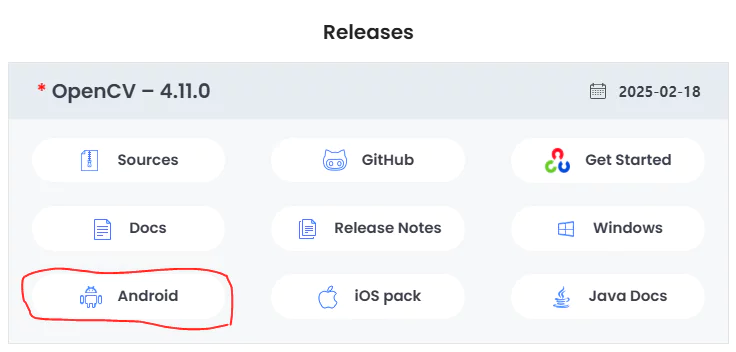
Download OpenCV for Android, unzip it, and copy the resulting sdk folder into android/app/src/main/cpp/opencv.
(So the final structure looks like android/app/src/main/cpp/opencv/sdk.)
Writing the CMake file
android\app\src\main\cpp\CMakeLists.txt
1
2
3
4
5
6
7
8
9
10
11
12
13
14
15
16
cmake_minimum_required(VERSION 3.10)
project(native_process)

set(CMAKE_CXX_STANDARD 17)
set(CMAKE_CXX_STANDARD_REQUIRED ON)

# Set the OpenCV SDK path
set(OpenCV_DIR "${CMAKE_SOURCE_DIR}/opencv/sdk/native/jni")
find_package(OpenCV REQUIRED)

# Build the native library
add_library(native_process SHARED native_process.cpp)

# Include OpenCV
target_include_directories(native_process PRIVATE ${OpenCV_INCLUDE_DIRS})
target_link_libraries(native_process ${OpenCV_LIBS} log)
Configuring build.gradle (app)
android\app\build.gradle
1
2
3
4
5
6
7
8
9
10
11
12
    defaultConfig {
    	...
        ndk {
            abiFilters "armeabi-v7a", "arm64-v8a", "x86_64"
        }
    }

    externalNativeBuild {
        cmake {
            path "src/main/cpp/CMakeLists.txt"
        }
    }
Calling native code via FFI
android\app\src\main\cpp\native_process.cpp
1
2
3
4
5
6
7
8
9
10
11
12
13
14
15
16
17
18
19
20
21
22
23
24
25
26
27
#include <opencv2/opencv.hpp>
#include <cstdint>
#include <cstdlib>
#include <android/log.h>

#define LOG_TAG "NativeDebug"
#define LOGD(...) __android_log_print(ANDROID_LOG_DEBUG, LOG_TAG, __VA_ARGS__)
#define LOGE(...) __android_log_print(ANDROID_LOG_ERROR, LOG_TAG, __VA_ARGS__)

extern "C" {
// Function exposed to Flutter
int
convert_to_grayscale(unsigned char *input_data, unsigned char *output_data, int width, int height) {
    try {
        cv::Mat input_image(height, width, CV_8UC3, input_data);
        cv::Mat gray_image;
        cv::cvtColor(input_image, gray_image, cv::COLOR_BGR2GRAY);

        memcpy(output_data, gray_image.data, width * height);
        LOGD("convert_to_grayscale Success");
        return 0;
    } catch (...) {
        LOGE("convert_to_grayscale Err");
        return -1;
    }
}
}
Pointers are used to work directly with input_data and output_data.
Using android/log.h lets you debug via the Flutter logs.
⚠️ Warning: allocate the correct memory size
For example, if output_data is allocated at grayscale size (width * height) but you memcpy color image data (width * height * 3) into it, you get a buffer overflow.
This kind of memory overflow doesn’t raise a std::exception, so wrapping it in try-catch won’t catch it either.
The app will crash due to invalid memory access (a segmentation fault).
lib/native/native_process.dart
1
2
3
4
5
6
7
8
9
10
11
12
13
14
15
16
17
18
19
20
21
22
import 'dart:ffi';

typedef ConvertToGrayscaleC = Int32 Function(
    Pointer<Uint8> inputData, Pointer<Uint8> outputData, Int32 width, Int32 height);
typedef ConvertToGrayscaleDart = int Function(
    Pointer<Uint8> inputData, Pointer<Uint8> outputData, int width, int height);

class NativeProcess {
  static final DynamicLibrary _dylib = DynamicLibrary.open('libnative_process.so');

  static void convertToGrayscale(Pointer<Uint8> inputData,
      Pointer<Uint8> outputData, int width, int height) {
    final ConvertToGrayscaleDart convertToGrayscale =
    _dylib.lookupFunction<ConvertToGrayscaleC, ConvertToGrayscaleDart>(
        'convert_to_grayscale');

    final result = convertToGrayscale(inputData, outputData, width, height);
    if (result != 0) {
      throw Exception("Err convertToGrayscale");
    }
  }
}
lib/native/native_control.dart
1
2
3
4
5
6
7
8
9
10
11
12
13
14
15
16
17
18
19
20
21
22
23
24
25
26
27
28
29
30
31
32
33
34
35
36
37
38
39
40
41
42
43
44
45
46
47
48
49
50
51
52
53
54
55
56
class NativeControl {
  static void dartRgb_to_ptr(
      {required ffi.Pointer<ffi.Uint8> inputPtr, required img.Image dartImg}) {
    final width = dartImg.width;
    final height = dartImg.height;

    for (int y = 0; y < height; y++) {
      for (int x = 0; x < width; x++) {
        // (row-major order)
        img.Pixel pixel = dartImg.getPixel(x, y);

        int index = (y * width + x) * 3;
        inputPtr[index] = pixel.r.toInt();
        inputPtr[index + 1] = pixel.g.toInt();
        inputPtr[index + 2] = pixel.b.toInt();
      }
    }
  }

  static void grayPtr_to_dartImg(
      {required ffi.Pointer<ffi.Uint8> grayPtr, required img.Image dartImg}) {
    final width = dartImg.width;
    final height = dartImg.height;

    for (int i = 0; i < width * height; i++) {
      int value = grayPtr[i];

      dartImg.setPixel(
          i % width, i ~/ width, img.ColorInt8.rgb(value, value, value));
    }
  }

  static img.Image convert_to_gray_func({required img.Image image}) {
    final width = image.width;
    final height = image.height;
    ffi.Pointer<ffi.Uint8> inputData = calloc<ffi.Uint8>(width * height * 3);
    ffi.Pointer<ffi.Uint8> outputData = calloc<ffi.Uint8>(width * height);

    try {
      dartRgb_to_ptr(
        inputPtr: inputData,
        dartImg: image,
      );

      NativeProcess.convertToGrayscale(inputData, outputData, width, height);

      final grayImage = img.Image(width: width, height: height);
      grayPtr_to_dartImg(grayPtr: outputData, dartImg: grayImage);

      return grayImage;
    } finally {
      calloc.free(inputData);
      calloc.free(outputData);
    }
  }
}
With FFI you can allocate memory using C’s malloc, calloc, and so on.
But memory allocated this way isn’t managed by the garbage collector, so you have to call free yourself.
dartRgb_to_ptr: stores a Dart Image object into the pointer.
grayPtr_to_dartImg: converts the contents of the result pointer back into a Dart Image object.
Update (July 2025)
⚠️ Warning: Pay attention to the channel (color) order you use when writing into the pointer from Dart.
cv::Mat input_image(height, width, CV_8UC3, input_data);
For example, the dartRgb_to_ptr function stores data in RGB order, so input_data holds data laid out as RGB.
That means when converting channels or color spaces on the input_image object, you need to use RGB2XXX.
Since OpenCV’s default channel order is BGR, it’s also a good option to lay out the data in BGR order on the Dart side instead.
lib/main.dart
1
2
3
4
5
6
7
8
9
10
11
12
13
14
15
16
17
18
19
20
21
22
img.Image _convert_to_gray_func(Map<String, dynamic> params) {
  img.Image image = params["image"];
  return NativeControl.convert_to_gray_func(image: image);
}
  ...
  ...
  Future<void> _toggleImage() async {
    ByteData data = await rootBundle.load("assets/bird-4728857_1280.jpg");
    Uint8List bytes = data.buffer.asUint8List();
    img.Image? image = img.decodeImage(bytes);
    image!;

    img.Image grayImage = await compute(_convert_to_gray_func, {
      "image": image,
    });

    setState(() {
      _imageBytes = Uint8List.fromList(img.encodePng(grayImage));
    });
  }
  ...
  ...
Flutter runs on a single main thread by default, handling both UI rendering and logic processing.
So if you run a heavy computation directly, the UI can freeze or lag.
compute spawns a new Isolate (a lightweight thread) to offload the work,
letting it run asynchronously without degrading the main thread’s performance.
(The grayscale conversion in this example is a lightweight operation on its own, but if you’re reaching for OpenCV/C++ in Flutter in the first place, you probably need more complex image processing — so compute is included here for that reason.)
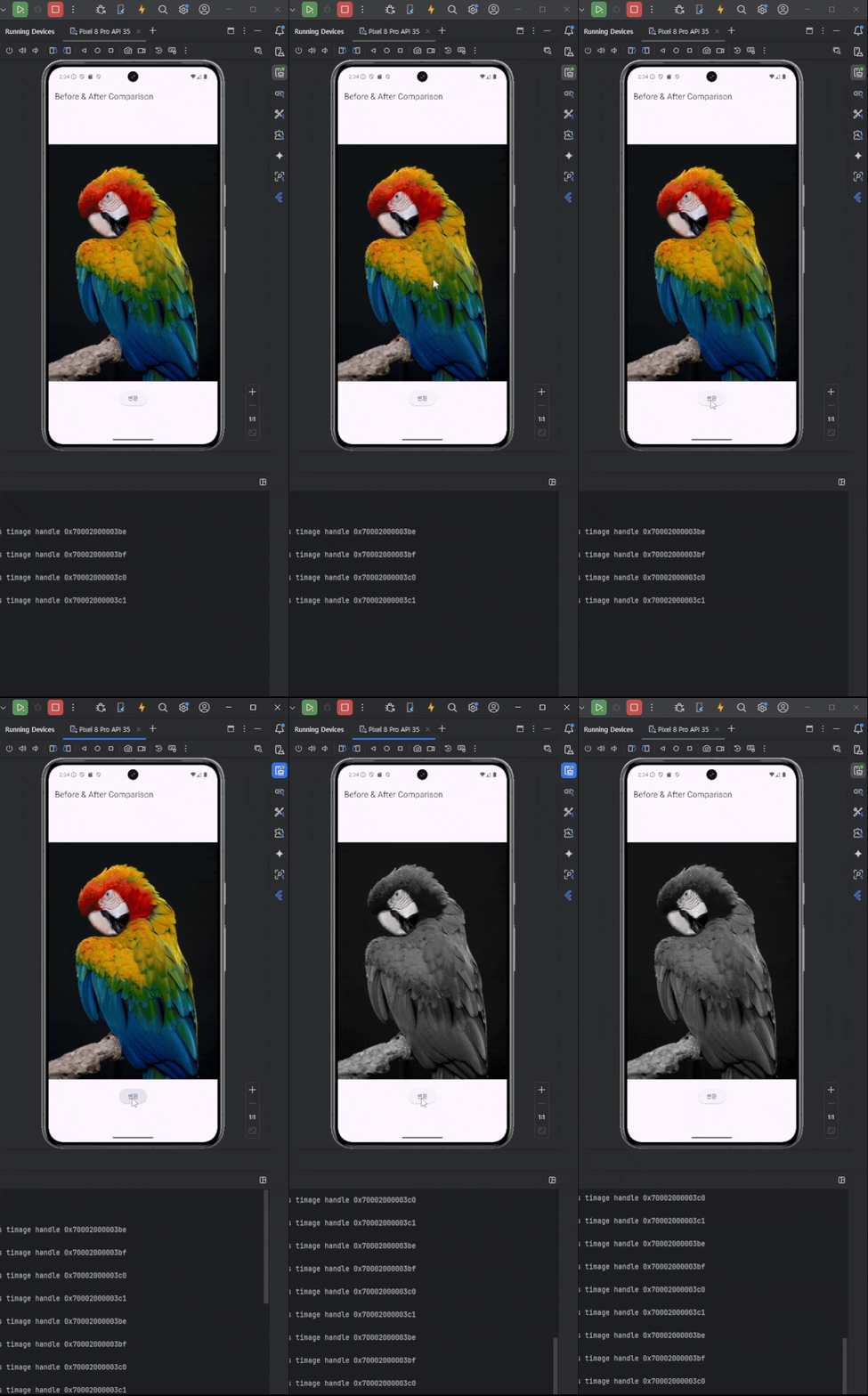
###
Your app must support the 16KB memory page size (Added 2025.11.04)
If you publish an app that uses the NDK to the Play Store,
you’ll see a warning saying “Your app must support the 16KB memory page size.”
The app can still be published, but there’s a warning that updates will be restricted after a certain period if this isn’t fixed.
Under Test and release, you can check which libraries in the latest version/bundle don’t support this.

Add 16KB-related settings to CMake
1
2
3
4
5
6
7
8
// CMake
# Higher page alignment: 16KB (0x4000)
set(CMAKE_EXE_LINKER_FLAGS
        "${CMAKE_EXE_LINKER_FLAGS} -Wl,-z,max-page-size=0x4000"
)
set(CMAKE_SHARED_LINKER_FLAGS
        "${CMAKE_SHARED_LINKER_FLAGS} -Wl,-z,max-page-size=0x4000"
)
By default, native code built with the NDK isn’t linked with support for the 16KB memory page size.
Side effect
Applying this option, however, introduces the following error:
“library “libc++_shared.so” not found”\
This file does in fact exist inside the NDK folder, but once the 16KB page setting is added,
the linker fails to properly resolve that library during the build.
Include it directly in the app project. (the most reliable fix)
I tried various CMake and Gradle configurations to avoid including it manually, but the linking error still wasn’t resolved.
1
2
3
4
5
~android\sdk\ndk\27.3.13750724\toolchains\llvm\prebuilt\windows-x86_64\sysroot\usr\lib\arm-linux-androideabi\libc++_shared.so
=> android\app\src\main\jniLibs\armeabi-v7a\libc++shared.so

~android\sdk\ndk\27.3.13750724\toolchains\llvm\prebuilt\windows-x86_64\sysroot\usr\lib\aarch64-linux-android\libc++_shared.so
=> android\app\src\main\jniLibs\arm64-v8a\libc++shared.so
The libc++_shared.so file you need to copy can be found under the Android SDK path, which you can check with the flutter doctor -v command.
You need to pull the right file for each ABI, following the same mapping shown above.
Note that for Gradle to automatically pick up JNI libraries, the folder must be named exactly jniLibs.
This folder name is a hardcoded convention in Gradle.
+) ABI (Application Binary Interface)
The example only includes the armeabi-v7a and arm64-v8a ABIs,
but you can add or remove ABIs as needed based on unsupported libraries and your target devices.
Gradle (app)
1
2
3
4
5
6
7
8
9
defaultConfig {
	....
        externalNativeBuild {
            cmake {
                // Passes optional arguments to CMake.
                arguments += listOf("-DANDROID_SUPPORT_FLEXIBLE_PAGE_SIZES=ON")
            }
        }
    }
This passes an option flag to the CMake configuration step that runs before compilation.
Summary
To support the 16KB memory page size:
- Configure CMake to support 16KB page alignment
- Handle the error that arises from applying that setting (
libc++_shared.so) - Pass a 16KB-page-aware feature flag at the CMake configuration step
Example Source Code
https://github.com/cornpip/flutter_cpp_opencv_example
Worth reading together
2025.11.26 - Flutter FFI Plugin Project
Differences from this post (flutter_cpp_opencv_example):
The manually-written
native_process.dartis generated by a script insteadInstead of one-off processing based on
compute, it uses a reusable worker isolate structure combiningIsolate.spawn+ReceivePort