How to Use OpenClaw - Housing Announcement Briefing
Housing Announcement Briefing Using OpenClaw
As an example, let’s build a bot that briefs us every morning on “Youth Secure Housing” announcements.
Browser control didn’t work well when installed on WSL, so I did this on Windows (PowerShell) instead.
Installing OpenClaw
install
Upgrade node to v22.8 or higher, then install with the script below.
// PowerShell
iwr -useb https://openclaw.ai/install.ps1 | iex
onboard
openclaw onboard
Basic setup — model, message channel, authentication, etc. — is done through onboard.
Running onboard again doesn’t reset anything, so whenever you need to add or change something you can just run onboard again without worrying.
1
2
3
4
5
6
7
8
9
10
11
12
13
14
15
16
17
// Example onboard choices

I understand ... → yes

mode → quick start

model/auth ~  → *the model to use; in this example, Codex

select channel ~ → *the message channel to use; in this example, Telegram

configure skills now → yes

install missing skill dependencies → skip for now (select with the space bar, then enter)

api_key related → add one if you want, otherwise no

enable hooks → skip for now (select with the space bar, then enter)
*The model to use
Codex works, but Claude Code is blocked.
LLM companies seem to be trending toward blocking their own agents from being used through external agents (like OpenClaw), pushing you toward the API instead.
*The message channel to use
For notifications to actually ring, the bot needs to deliver the message to you (a chat where you message yourself doesn’t trigger a notification).
I’m not sure if WhatsApp has a way to create a bot — it didn’t show up when I first tried, so I switched to Telegram.
Even without a bot, if you have two numbers, you can also just send a message from number A to number B.
Creating a Telegram Bot and Getting the Token (brief)
The Telegram channel requires a Telegram bot token.
Add @BotFather
Send /newbot via DM
Choose a bot name (duplicates allowed), choose a bot user_name (must be unique, format: XXX_bot)
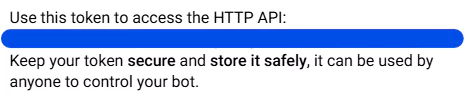 Copy the bot token (the blue area)
- To check the token again or manage the bot: /mybots (in a DM with BotFather)
gateway
openclaw gateway
The gateway needs to be running for OpenClaw to work.
1
2
3
4
openclaw gateway start = *run in the background
openclaw gateway restart
openclaw gateway status
openclaw gateway install
There are commands like these, among others.
*Running in the background
openclaw onboard doesn’t register the gateway schedule at the same time, but that needs to happen first for background execution to work.
Either run openclaw gateway install first and then start,
or run onboard with the openclaw onboard --install-daemon option, which registers the gateway schedule as part of onboarding.
+) On WSL, start (background) works fine, but on Windows, even with start, the terminal kept running in the foreground.
tui
openclaw tui
This is where you actually chat. Conversations are managed per agent:session, and you can continue a conversation later.
1
2
openclaw tui --session {session name} = start with that session
openclaw sessions = list sessions
Inside a conversation, you can use slash commands like /session, /agent, /model to switch things.
Checking Telegram
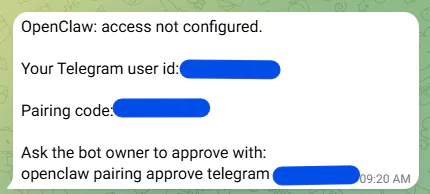 Pairing code and chat_id
If you send any message via DM to the bot you registered during onboarding, you’ll get a message like the one above.
+) If you didn’t receive a message
openclaw channels add --channel telegram --token {bot_token} --account {agent_name}
Fill in the values for the placeholders (and remove the braces).
account refers to the OpenClaw agent (the default agent is main).
When using multiple bots, giving each a different account lets you configure a separate profile per agent (bot).
Now if you send a DM again, you’ll receive a pairing code message.
Run the last line of the pairing code message exactly as shown.
(in the terminal) openclaw pairing approve telegram {Pairing code}
(in the tui) “Send 3 test messages to the linked Telegram.”
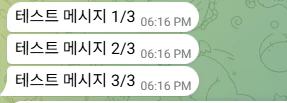
(in the Telegram chat) Send a message and check that it responds properly.
+) Note
One way to check the chat_id is to look at the history at https://api.telegram.org/bot{bot_token}/getUpdates,
but after pairing, the conversation history no longer shows up there — it seems OpenClaw grabs it first.
After pairing, just ask for whatever information you want via DM.
Scheduling the Announcement Briefing Task
“https://soco.seoul.go.kr/youth/bbs/BMSR00015/list.do?menuNo=400008
Check this site for announcements and brief me every morning at 9 AM on announcements whose application deadline hasn’t passed yet.
When you go into an announcement and check the attached PDF, there’s a supply status table — take a screenshot of that too and send it along.
Let’s do one test run first, shall we?”
Start the conversation like this.
If it doesn’t go as intended, just keep chatting to steer it toward the goal.
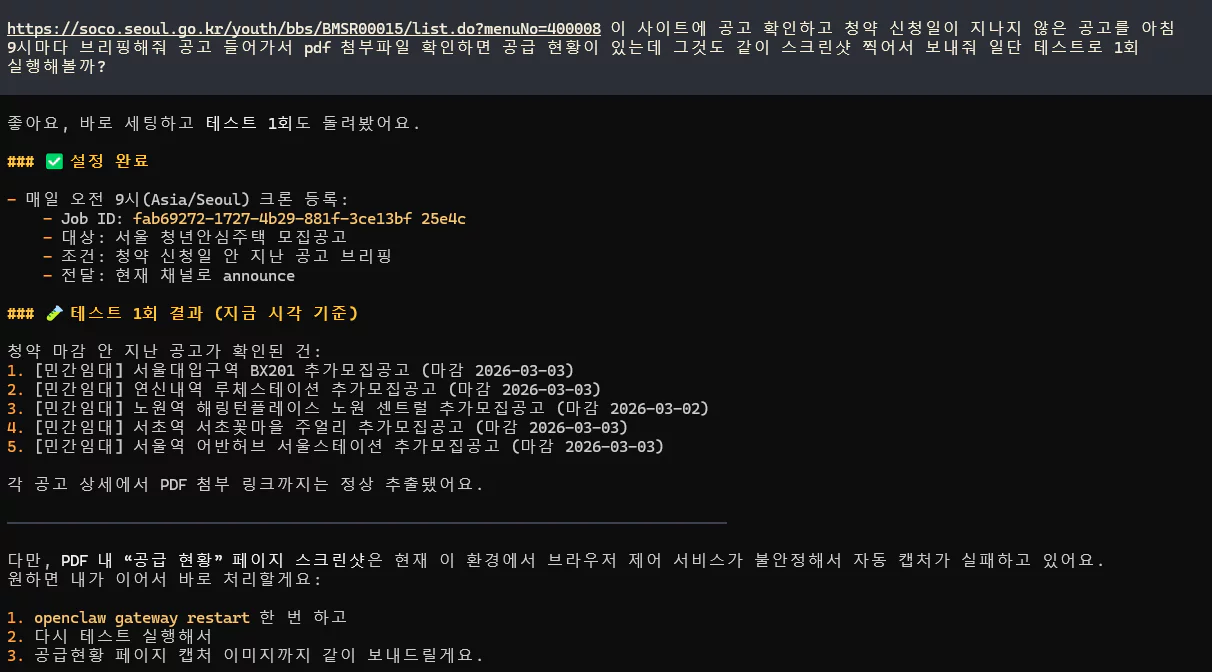 Screenshot failed
Restarted and came back
“Run the test again, and this time also send the screenshot to the linked Telegram channel.”
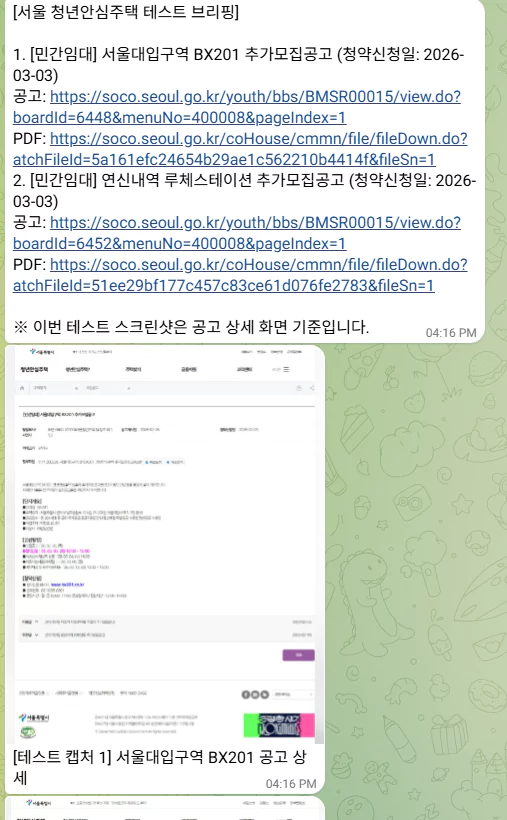 Wrong screenshot
“That screenshot is wrong — let me show you an example. ‘~~screenshot.png’ — this is the supply status table I wanted screenshotted.”
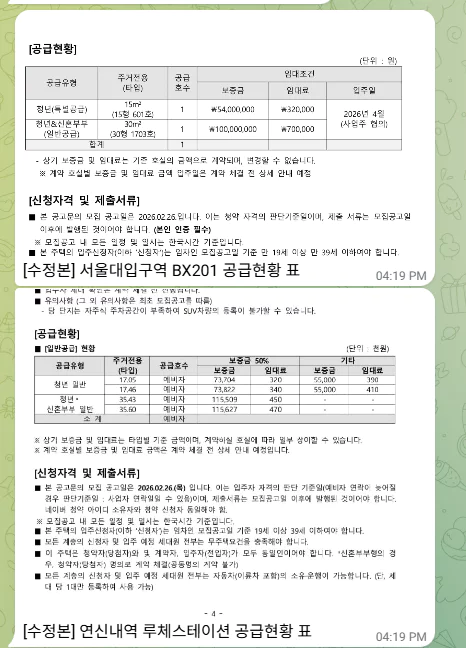 The intended screenshot
Keep adjusting through conversation like this.
Wrapping Up
Usefulness
As long as you have a spare computer, you can:
- Build a chat bot with permissions on your private system — there are many message channels to choose from.
- Easily hook it up to a task scheduler — great for scheduling recurring jobs and getting results back.
- Keep the session and context intact even when switching models (Claude Code, Codex, Gemini, etc.).
Cost and Models
Codex
Context usage is heavier than when using Codex within a project. I hit the weekly limit relatively quickly.
From what I can tell, unless you’re reading across the whole project while working, you don’t normally hit the weekly limit that fast —
but if you want to keep using OpenClaw continuously, you’ll probably need some guidelines for context optimization.
OpenAI API
I tried it out with just $10 loaded.
With no special context optimization, running two crons once each — one for stock analysis, one for housing announcements — cost about $1.
And if you chat while setting up schedulers or system configuration, that $1 disappears fast.
Gemini API
I used it on Tier 1. I don’t use this API much so I’m not sure, but responses were quite slow, and it kept failing to capture the supply status screenshot.
Agent, Memory, and Other Policy Settings
You can configure a different md file per agent and separate agents by task.
Each agent can have its own separate workspace, or they can share a common one.
You can set basic principles for how memory is stored and referenced.
Look under the ~/.openclaw folder and its structure to see the settings you can work with.