OpenAI Codex CLI & Web: Review and Usage Guide
I’ve been mainly using Codex for over a month now.
 Codex CLI
1. Codex Web
You can link it with a GitHub repository and have it send PRs. (Works with both public and private repos.)
Watching the intro video should give you a good feel for how it’s used.
I mainly used Codex CLI and didn’t make much use of the web version.
For example,
- Codex CLI: question 1 → response 1 → I edit the code directly → question 2 → response 2
- Codex Web: question 1 → response 1 → follow-up 1-2 → response 1-2 → question 2 → response 2
With the web version you can only intervene in the code through prompts, whereas with the CLI you can step in and edit the code directly as you go.
When you’re implementing a feature, being able to touch the code directly makes things faster and keeps the work aligned with your intent.
The web version also has to go through a PR-merging process, which is cumbersome when you’re in the middle of actively building something.
That said, it does seem well suited to running checks or suggestion-style processes on projects that already have solid rules in place.
+ PR Failed to create (25.11.28)

 error
error
Sometimes PR creation just fails, with a “PR Failed to create” error.
 Clicking settings
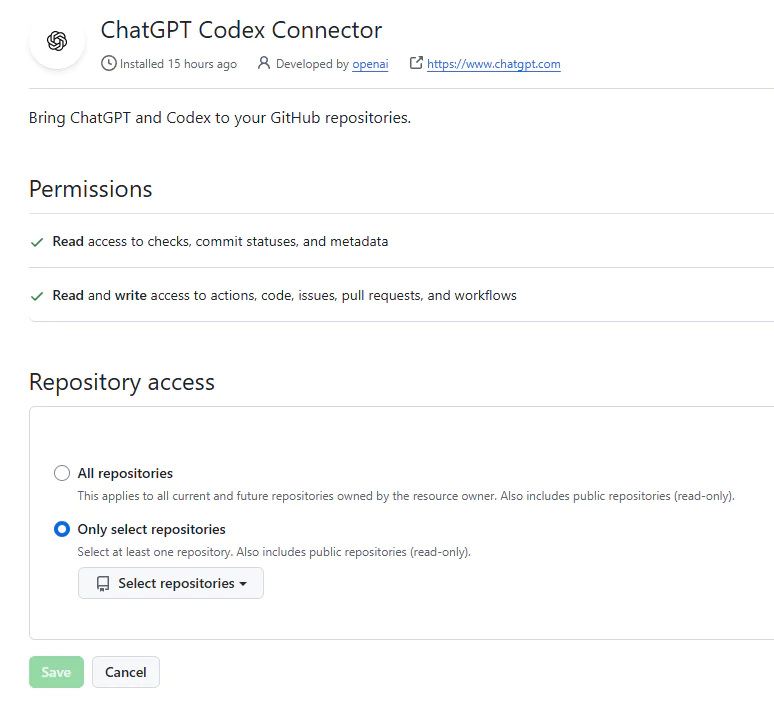
Separate from “creating an environment,” the Connector also needs repository access permission granted before PRs can work.
2. Codex CLI
Usage and examples
npm i -g @openai/codex
Getting Codex CLI set up is as simple as one npm install. I used it on Windows via WSL.
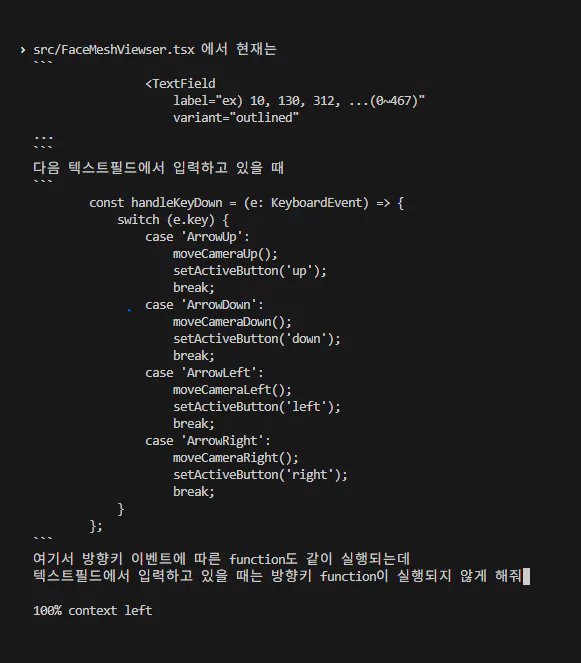
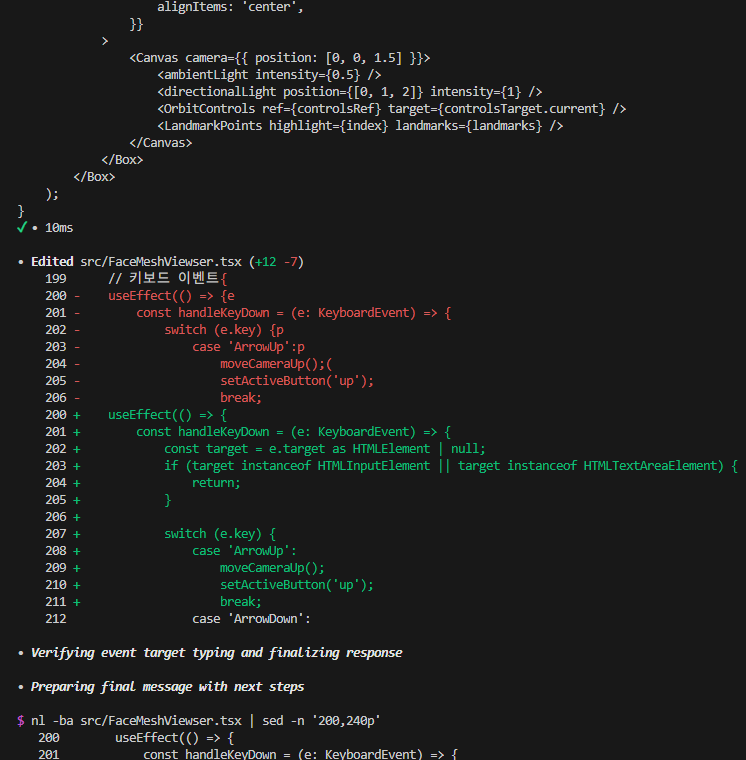
 Example
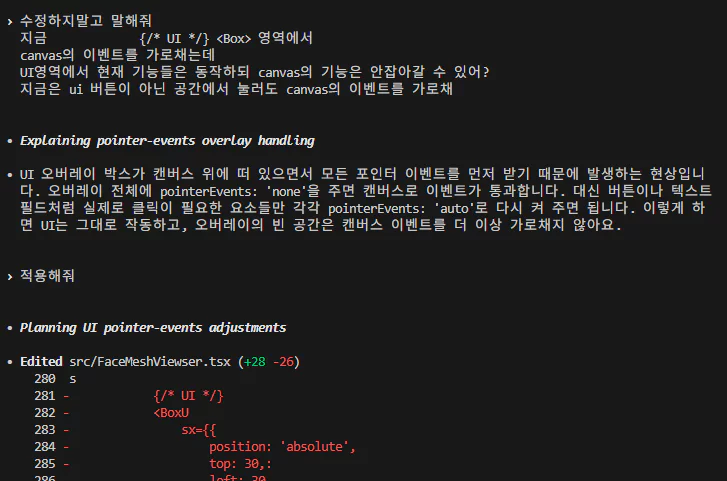 Example 2
As in “Example 2,” it also works well to phrase your request as “review this, but don’t change anything,” then check the proposed direction and scope of changes before applying them.
When editing code with heavy state dependencies, Codex sometimes makes things more complicated than they need to be.
In those cases, it helps to first confirm how it plans to implement the change, make your intent clear, and only then have it apply the edit.
I’m not sure whether it’s multimodal input or some other kind of processing, but it can also analyze files like images, Excel sheets, and PDFs.
So you can even use screenshots or diagrams to drive feature implementation.
(On WSL, as long as the path is correct, it can read files even outside the project root.)
Usage limits
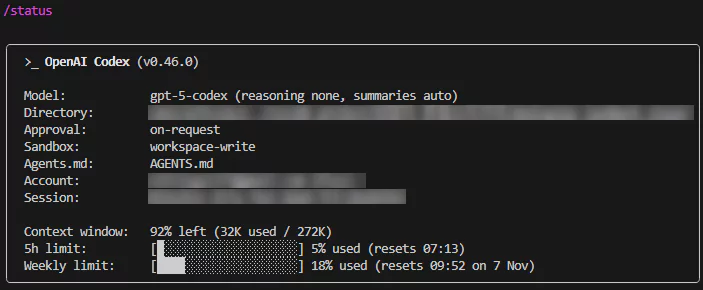 /status
There are two kinds of token limits. In my experience, the weekly limit has plenty of headroom,
but the 5-hour limit can get hit if you repeat queries that broadly explore the codebase, like refactoring or renaming packages.
When I got close to the 5-hour limit, I’d interrupt with Ctrl+C, wait for it to reset, and then say “continue” — that’s how I managed it.
(Even after stopping midway and resuming later, the flow picks back up smoothly.)
Also, since the logs let you see roughly what Codex is doing,
you can immediately correct it if it starts poking around somewhere unintended — e.g., external packages, built-in packages, build files, etc.
 context left
Separate from the 5-hour and weekly limits, each session also has its own “context left,” which fills up relatively quickly.
Keep in mind that once it hits 0%, you can no longer send queries in that session.
AGENTS.md
docs: https://agents.md/
Codex lets you set up something similar to a system instruction.
It’s not the highest-priority prompt, but it does get applied.
Example 1
1
2
3
4
5
6
7
8
9
10
11
12
13
14
15
16
17
18
## Scope of Modification
- Do not modify anything unless explicitly instructed or requested by the author.

## Preserve Author's Intent
- Maintain the original tone, structure, and wording style whenever possible.
- Only correct clear typos or objective errors.

## Record All Changes
- Document every modification along with the reason and the exact change made.

## Always Reflect the Latest File
- All updates must be based on the latest version currently stored in the repository.
- Previous conversation history should be considered as reference only, not the source of truth.
- If any previous statement conflicts with the current file, always prioritize the latest file.

## Language Preference
- Korean is the default language for responses unless the user requests otherwise.
- Technical terms or error messages may include English with appropriate Korean explanation when needed.
Example 2
1
2
3
## Setting Color Transparency
- withOpacity() 말고 withAlpha(0~255)를 사용해줘
- withOpacity 는 deprecated 됐어
While doing Flutter development, Codex kept generating code with the deprecated withOpacity() method, so I added the instruction from Example 2, and it switched to using the withAlpha method.
Example 1 covers more general-purpose content.
If you want to see a noticeable effect, it’s more effective to set instructions specifically around scripts or tests.
MODIFICATION_LOG.md (+ 26.02.10)
1
2
3
4
5
6
7
8
9
10
11
12
13
14
15
16
17
18
19
20
21
// AGENTS.md

## Change Logging Rule
REQUIRED: Any file change must be logged in `MODIFICATION_LOG.md`. Do not skip this step.
If `MODIFICATION_LOG.md` does not exist, create it first, then append the entry.

### What to log
- Date/Time
- Summary of what changed
- Files/paths touched
- Reason / context (why the change was made)
- Notes on impact (breaking changes, migration steps, TODOs)

### Logging format
Append a new entry at the bottom of `MODIFICATION_LOG.md`:

- YYYY-MM-DD HH:mm (KST)
    - Summary: ...
    - Files: ...
    - Reason: ...
    - Impact/Notes: ...
Adding instructions for a log file like this turns out to be useful too.
Session
It looks like starting a conversation activates a session, which allocates a dedicated space on OpenAI’s cloud infrastructure, and once the session expires that space gets torn down.
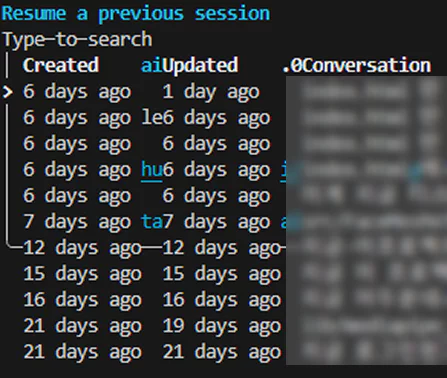 codex resume
You can use the codex resume command to pick an existing session.
Running codex by itself creates a new session by default, while codex resume --last takes you back to your most recent session.
docs: https://github.com/openai/codex/blob/main/docs/getting-started.md#cli-usage
Git inside Codex
When using Codex on Windows, running git status inside the Codex environment shows every file as modified. This appears to be caused by line-ending (EOL) differences.
Because of this, I couldn’t just ask it to “check the git changes and write a commit message.”
While I’m at it
Interestingly, when changes made inside Codex get applied locally, the line-ending issue doesn’t show up.
The flow Codex uses to apply changes to your local machine is probably roughly this:
- Copy the local project to the cloud.
- Edit the code in the cloud and generate a
git patch. - Apply it locally with
git apply.
Here, the patch only describes the actual changes, and it’s the local environment running git apply that determines the line-ending policy.
Where Codex CLI falls short
For example, in a flow like:
question 1 → response 1 → I make an edit → question 2 → response 2
response 2 often gets generated without taking my edit into account.
When that happens, Codex seems to ignore the code I changed and behaves as if it reverted to the pre-edit state (response 1), continuing to edit from that earlier version instead.
Adding related instructions to AGENTS.md doesn’t seem to reliably fix this,
so it’s more dependable to explicitly say something like “I just made an edit, please read the latest file and take it into account” when you ask your question.
Related posts
2026.02.10 - [AI] - Codex Skills
2026.03.02 - [AI/agent] - How to Use OpenClaw - Housing Listing Briefing